License
You must have a valid license file before you can start using Platform Connectors. The application will not operate without one.
License scope and rules
The license file governs multiple aspects of usage:
Application Version
The license includes the application version you are entitled to run.
Upgrading the application to a major version requires obtaining an updated license first.Application patches and minor updates are allowed within the licensed major version.
Expiry:
Demo licenses: limited, short‑term expiry (e.g. 30 days).
Standard licenses: No Expiry
Workstation Limit
The license includes a maximum number of workstation machines that can be registered.
Additional workstation capacity can be purchased per workstation and supplied via an updated license file.
Plugin Enablement
Only plugins listed in the license are enabled in the UI.
Individual plugins may include: (a) max instance count, (b) limits on items, connections, or transactions. See each plugin’s page for its specific limits.
Obtaining a license
Contact sales/support with required details (license number, desired plugins, workstation count).
Receive a signed license file (e.g.
pconn.lic).
Applying a license (UI)
First-time activation
Open
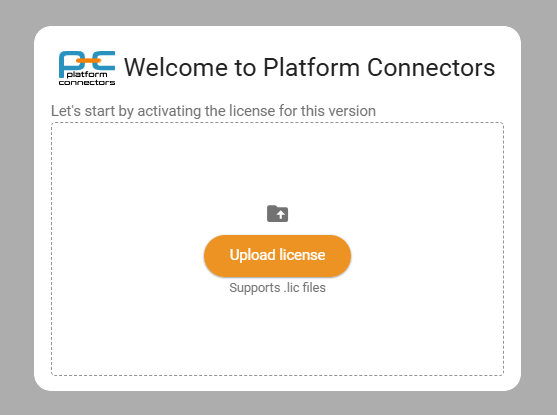
http://localhost:8000(or your configured host/port).A modal dialog appears prompting you to upload the license file (–file
.lic).Click Upload and select the file.
Once the onboarding is completed, you can check the license details by navigating to Settings.
Applying a updated license
Navigate to Settings → Licensing.
Click Update License.
Upload the new license file (for added plugins or limits).
The page refreshes showing updated expiry, workstation quota, and plugins.
Workstation limits
When a workstation first connects/registers, it consumes one slot from the license. To free a slot (for decommissioned machines), remove the workstation from the Settings page. The license file includes the limit of workstations that can be configured.
Plugin limits
Plugin pages document their specific limit semantics. Examples:
“Instance limit”: Maximum number of active plugin instances.
“Item limit”: Cap on items processed (records, devices, connections, etc.).
Next steps
Register your first workstation: workstation.